
How to Remove the Background from an Image: The Complete 2026 Guide
8/23/2026
How to Remove the Background from an Image: The Complete 2026 Guide
Updated August 2026 · 12 min read
A clean, distraction-free background is often the difference between a photo that looks professional and one that looks like a snapshot. Whether you're preparing product photos for an online store, cleaning up a headshot, or building marketing graphics, removing the background is one of the most common — and most useful — image editing tasks there is.
This guide walks through why background removal matters, how manual and AI-based methods compare, and how to do it in seconds using BackgroundZen, a browser-based tool built specifically for fast, precise cutouts.
Why Removing Image Backgrounds Matters
Backgrounds carry a lot of visual noise. A cluttered desk, a mismatched wall color, or uneven lighting can pull attention away from the actual subject of a photo. Removing the background solves several practical problems at once:
- Consistency — every product photo in a catalog can share the same clean look, even if the originals were shot in different locations.
- Flexibility — a transparent PNG can be dropped onto any web page, template, or marketing asset without a background clashing with the design.
- Focus — removing distractions puts full attention on the subject, which tends to improve click-through and conversion rates for product listings.
- Speed at scale — for stores and marketplaces managing thousands of SKUs, manual editing simply isn't sustainable.
Manual vs. AI Background Removal
There are two broad approaches to isolating a subject from its background, and they differ enormously in time and skill required.
Manual Methods
Traditional photo editors such as Adobe Photoshop offer tools like the pen tool, magic wand, and layer masks. These give precise control but require a real editing skill set — tracing hair or fur strand by strand, for example, can take an experienced editor 15–30 minutes per image. This approach still makes sense for extremely high-end retouching, but it doesn't scale well.
AI-Powered Automatic Removal
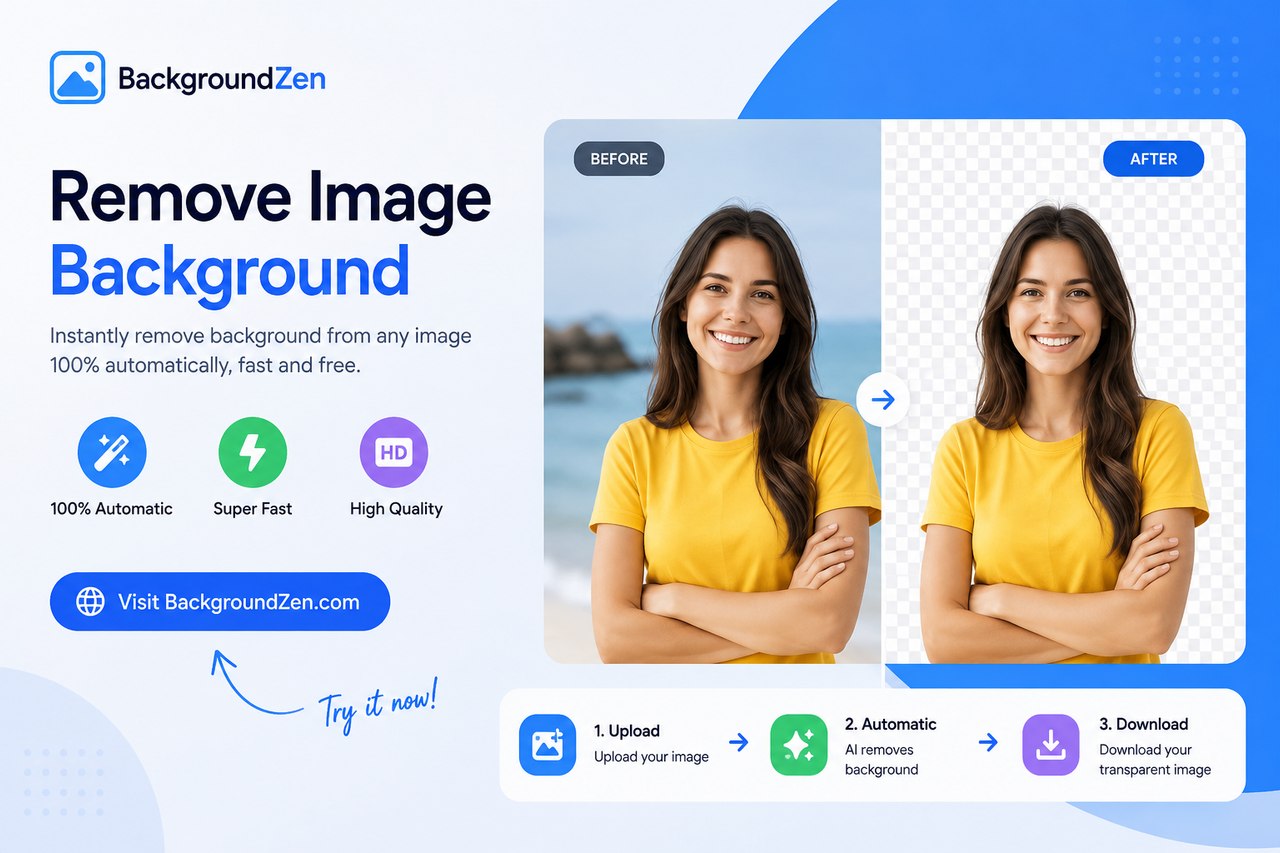
Modern background removal relies on image segmentation — machine learning models trained to distinguish a subject from its surroundings, pixel by pixel. Instead of manually outlining the subject, the model detects edges, fine detail like hair and fabric texture, and separates the foreground automatically. Tools built on this approach, such as BackgroundZen, can turn around a cutout in about five seconds with no editing experience required.
How to Remove a Background Using BackgroundZen
BackgroundZen is built around a simple idea: drop in a photo, get a clean cutout back, no design skills needed. Here's the full process.
Step 1: Upload Your Image
Head to the BackgroundZen editor and drag in a JPG, PNG, or WebP file (up to 20 MB), or paste a direct image link. No account is required to try the first cutout, and uploads stay private to your session.
Step 2: Automatic AI Cutout
The AI model detects the subject and separates it from the background automatically — including tricky details like hair, fur, and fine fabric edges that are historically the hardest part of manual masking.
Step 3: Download or Swap the Background
Export the result as a transparent PNG, or replace the removed background with a solid color, gradient, or your own custom scene directly inside the editor.
Remove a Background Now →
Key Features That Make BackgroundZen Stand Out
Precise Edge Detection
Fine details like hair, fur, and jewelry edges are notoriously difficult to mask by hand. BackgroundZen's model is tuned to hold up on these edge cases rather than leaving a rough or "cut-out" look.
Why edge quality matters
A cutout with jagged or semi-transparent fringing around hair or fabric is one of the fastest ways to make an image look artificially edited. Clean edge detection is what separates a professional-looking product photo from an obvious cutout.
Seconds, Not Minutes
Average processing time sits around five seconds per image — fast enough to keep pace with a full product catalog rather than a handful of hero shots.
Batch Uploads
Instead of processing images one at a time, you can queue hundreds of files and download them as a single archive — useful for stores onboarding an entire catalog at once.
Background Swap
Once the subject is isolated, you can drop in a solid color, a gradient, or a custom scene, which is especially useful for keeping an entire product line visually consistent.
API for Developers
For teams that want background removal built directly into their own product or content pipeline, BackgroundZen offers an API so cutouts can be automated rather than run manually through the browser editor.
Private by Default
Uploaded images stay private and expire on a schedule you control, which matters for teams handling unreleased product photography or client work.
Best Practices for Clean Background Removal
Start with Good Lighting and Resolution
AI models are good, but they still work best with clear, well-lit source images. Flat, even lighting with minimal shadow reduces the chance of the model misreading the edge between subject and background. Higher-resolution source photos also produce sharper, more usable cutouts, especially if the final image will be scaled up for print or a large hero banner.
Choose the Right File Format for the Job
| Format | Best for | Supports transparency |
|---|---|---|
| PNG | Product photos, logos, print | Yes |
| WebP | Web pages, faster page loads | Yes |
| JPG | Photos with a solid background swapped in | No |
WebP is worth considering for web use specifically, since it tends to produce smaller file sizes than PNG while still supporting transparency, which can help with page load speed and image SEO.
Keep Naming and Alt Text Consistent
Once a background is removed, it's worth pairing the file with a descriptive filename and alt text before publishing — this small step helps both accessibility and image search visibility.
Common Use Cases
E-Commerce Product Photography
Most marketplaces (Amazon, Etsy, Shopify storefronts) expect product photos on a plain white or transparent background. Batch-processing an entire catalog through a tool like BackgroundZen turns a multi-day photo-editing task into an afternoon of work.
Social Media and Marketing Graphics
Isolated subjects are easier to drop into templates, ads, and branded graphics without a background clashing with the design.
Real Estate and Portraits
Removing a distracting background from a headshot or listing photo, then replacing it with a neutral tone, gives a more polished, consistent result across a portfolio or listing page.
BackgroundZen Pricing Overview
BackgroundZen offers both pay-once credits and a monthly subscription, so casual users and high-volume teams can pick whichever model fits their workflow. Lifetime credits start at roughly $1.89 per image for a small pack and drop to about $0.38 per image at the largest tier, while unused lifetime credits stay valid for three years. The monthly plan starts around $0.22 per image and scales down to about $0.12 per image at the highest tier, with credits refreshing every 30 days. Full details, including a high-volume plan for larger catalogs, are available on the BackgroundZen pricing page.
BackgroundZen vs. Traditional Editing Software
| BackgroundZen | Manual Editing (e.g. Photoshop) | |
|---|---|---|
| Time per image | ~5 seconds | 15–30+ minutes |
| Skill required | None | Trained editor |
| Batch processing | Yes | Manual, one at a time |
| API access | Yes | Requires custom scripting |
| Best for | Catalogs, marketing, scale | High-end custom retouching |
Frequently Asked Questions
What is the fastest way to remove a background from an image?
AI-powered tools are by far the fastest option. Rather than manually tracing a subject, an automated tool like BackgroundZen detects the subject and produces a transparent PNG in about five seconds, even across a batch of hundreds of images.
Do I need Photoshop to remove a background?
No. Photoshop's pen tool and masking features can produce very precise results, but they require editing skill and time. Browser-based AI tools handle detection and masking automatically, with no design software required.
What image formats can I upload for background removal?
Most tools, including BackgroundZen, accept JPG, PNG, and WebP files up to around 20 MB per image.
Will removing the background reduce image quality?
Quality loss mainly comes from file compression, not from the cutout process itself. Exporting as a PNG preserves transparency without extra compression artifacts, and a higher-resolution source photo produces a higher-resolution cutout.
Can I replace the background instead of just removing it?
Yes. After the subject is isolated, most tools let you swap in a solid color, gradient, or custom scene — useful for keeping an entire product line visually consistent.
Is there an API for automating background removal?
Yes. BackgroundZen offers an API so background removal can run automatically inside an existing catalog, CMS, or photo pipeline instead of uploading images manually one by one.
Conclusion
Background removal used to mean either paying for professional retouching or spending hours with a pen tool. AI-based tools have changed that math entirely — a task that once took thirty minutes per image can now take five seconds, without sacrificing the fine edge detail that makes a cutout look professional. For anyone managing a product catalog, building marketing assets, or just cleaning up a single photo, a tool like BackgroundZen turns background removal into a genuinely quick step rather than a bottleneck.